2010-08-16
 17:38:39 by Stephan, Categories: English , Tags: articles, blog, donate, donations, flattr, micropayment, software
 Supporting the things you love and get for free on the internet has never been easier. Flattr is a micropayment service which allows you to determine how much you want to donate every month and then lets you distribute this amount equally among the things you "flattr" by simply clicking on a button!
Try it out by clicking on the "flattr" button in the sidebar  =========>
Flattr is now open to everyone. Sign up and support wonderful sites like WikiLeaks, great software like NoScript or JDownloader or even stupid blog posts with just one click. It's not going to get any easier. Minimum monthly amount is just 2€. No more excuses! Sign up and spread the word.
2010-06-28
23:03:33 by Stephan, Categories: English , Tags: filter, fraunhofer vuvuzela-filter-plugin, remove, sound, vlc, vuvuzela, world cup - Tube figured out the frequencies and posted a solution for Logic Express (Mac).
- Sonic77 has a solution using the VSThost freeware and ReaEQ (free, AFAIK). Click here to listen to the amazing difference this makes.
- Hendrick posted a nicely documented solution using VSThost and the freeware Electri-Q (posihfopit edition) equalizer. He even included a preset!
- Download VSThost, unzip and run from the directory where you saved it (it doesn't come with an installer).
- Donwload a VST equalizer plugin like ReaQ or Electri-Q and run the installer or get the new Fraunhofer Vuvuzela-Filter-Plugin which might lead to superior results.
- In VSThost, press Ctrl+N and choose the plug-in from step 2 (e.g. "reaeq-standalone.dll" or "Electri-Q (posihfopit edition).dll"). The resulting configuration should look like this:

- If you're using the new Fraunhofer Vuvuzela-Filter-Plugin, follow the configuration instructions here.
If you're using an equalizer plugin, configure it to tune out the frequencies 235Hz, 465Hz, 930Hz and 1860Hz. Start by clicking on the plugin edit symbol (see arrow below):Note: Bandwidth values above are very conservative, you'll probably want to increase them later (while listening to the results).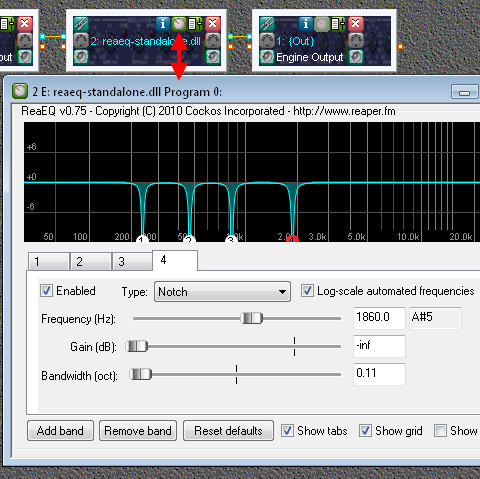
If you don't want to manually configure the equalizer, use the Electri-Q plugin and download and unzip Hendrick's preset. Click on the plugin edit symbol (as above) and then right-click in the "Presets" display, choose "Import Preset" and select the presets file: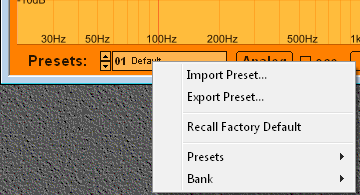
- Specify the audio input and output ports in VSThost (completely updated June 18):
I) If the sound is coming from an external device (e.g. TV line out), connect it to your PC, then choose Devices>Wave from the menu in VSThost and select the corresponding "line in" as the input port. Depending on where you want to listen to the processed audio, choose "loudspeakers", "line out", etc. as the output port [the actual names are more complicated, like "MME: loudspeakers (Realtek High Definition Audio)"].
II) If you're watching streaming video in your browser, I currently don't know how you'd manage to get filtering to work without buying a second sound card or a software called Virtual Audio Cable (trial version available). Please read below for a possible solution for SHOUTcast streams and let me know in the comments if you have a better idea.
IIa) If you're using Virtual Audio Cable, set "Line 1 Virtual Audio Cable" both as the standard playback device in your Windows audio settings and as the input port for VSThost (in the Devices>Wave menu), then choose the desired output port ("loudspeakers" or something similar). This way, the original streaming audio is sent to the virtual audio cable, then runs through the filter before being output to the speakers.
IIb) If you're using a second sound card like the SoundBlaster Audigy 2 (available for a few € on auction sites), specify "Loudspeakers / Creative SB Audigy 2" as the standard playback device in Windows but don't connect any actual speakers to the card. Then go to Devices>Wave in VSThost and choose "What U Hear" as the input port and your regular loudspeakers (connected to the existing sound card or onboard chip) as the output port. Note: If you bought some stupid second sound card which does not have a "What U Hear" or "Stereo Mix" channel you'll have to run an actual cable from one card to the other. - That's it. Make sure "Autosave PlugIn Banks" and "Autosave Performance" are selected in the File menu so that you don't have to redo everything the next time you start VSThost.
- VuvuzeLAUTLOS is an adaptive Vuvuzela filter implemented as a VLC plugin.
- Prosonic Vuvux is free and most likely better than equalizer-based solutions, too, but it only runs on Mac OS X.
- Darren posted a (partially) different set of frequencies.
- KVRaudio has a large database of plugins and hosts (in case you don't like the ones used here).
- Winamp can play SHOUTcast video streams and has an Electri-Q plugin, so you should be able to filter streaming video rather easily and without the need to buy additional software or a second sound card (though I didn't try this). The problem, of course, will be to find SHOUTcast stations showing the games. Winamp also has a "line in" option: Ctrl-L and type "linein://" which you might be able to use to filter audio from an external source, but this didn't work for me.
- I found just one stand-alone equalizer for Windows, and it's expensive (haven't tried it).
- I tried using AutoAudioDenoizer (trial version available) without much success.
- Filtering with GarageBand (in German, of course).
- Read a book, watch a TED talk or South Park, go out for dinner and a walk, make your own movies, educate yourself about the actual cause of the financial crisis...
2010-06-12
Everyone knows Google Maps (which BTW now allows you to add your local business for free), but there's more:
- Microsoft's Bing Maps can show you Luxembourg in an awesome "bird's eye" aerial view with multiple angles.
- User-generated OpenStreetMap is the best site to find hiking and biking trails which are not displayed on Google or Bing.
- GR-Atlas visualizes a range of topics from the greater region (found on wort.lu).
- Luxmap displays "relevant local village and business information" (currently only for Dudelange, Hesperange and Roeser), though I doubt their attempt to get businesses to pay for a listing will be very successful.
- Update September 1st, 2010: topograhpie.lu is Luxembourg city's urban information map.
- Update February 23rd, 2011: map.geoportal.lu has the newest 2010 aerial photos (better resolution than Google Maps)!
2010-05-28
Preparatory works at the Howald tunnel (A1) are starting this weekend, leading to the following traffic restrictions from Friday (28.05.) 20:00h until Sunday 06:00h (source):
- direction Trier: complete closure between "Croix de Gasperich" and "Irrgarten".
- direction Gasperich: only one lane available between "Kirchberg" and "Croix de Gasperich".
The actual works are scheduled to start June 28 and are going to last until November. Since there are no viable alternative routes, you'll probably be telling your grandchildren about the legendary traffic jams:
"Back when oil was still plentiful, I used to drive my car to the bank where I worked and that one summer they had to renovate the tunnel and..."
"Mom, Grandpa needs his pills! He's talking gibberish again!"
Here's the official website for the tunnel works with further information.
2010-05-18
12:05:34 by Stephan, Categories: English , Tags: calligraphy, chinese, city concorde, luxembourg, tea 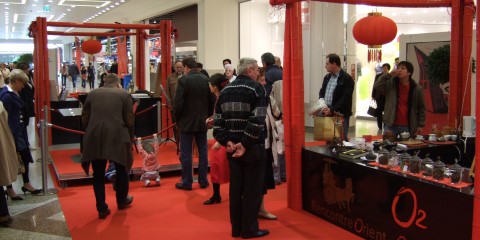
The City Concorde shopping center has set up a few stands where you can have your name* written in traditional Chinese characters, buy Chinese tea, try (free!) Chinese food, etc., during regular opening hours. It's not the world expo, but it's surprisingly nice. Saturday (22.05.) is the last day.